
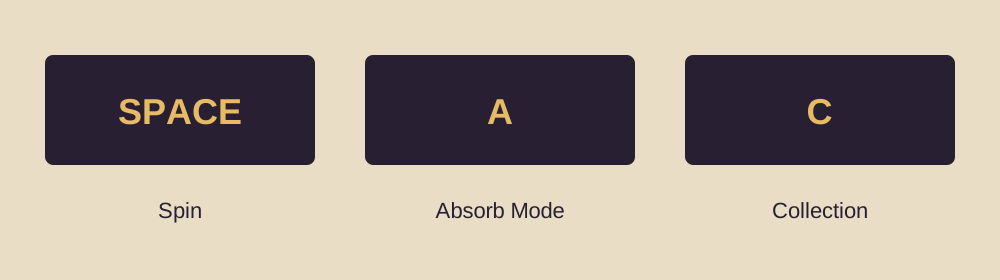
Slotbound’s documented keyboard shortcuts include Space to spin, A to toggle Absorb Mode and C to open Collection during a run. Mid-run saving was added during the demo’s v0.3.0 update. Use the current Controls menu and normal save/continue interface to confirm the bindings and state on your installation.
This page separates the developer’s documented features from platform assumptions. A controller button mentioned in an update does not by itself prove Steam Deck verification, every controller mapping or every operating-system configuration.
Keyboard shortcuts with a source
| Action | Documented input | Source context |
|---|---|---|
| Spin the machine | Spacebar | Added in v0.3.0 |
| Toggle Absorb Mode | A | Added in v0.3.0 |
| Open Collection in a run | C | Added in v1.0.0 (8) |
| Open Collection with a gamepad | View button | Documented in v1.0.0 (8) |
These are documented inputs, not an exhaustive binding map. If you changed a control, your local setting takes precedence. When a shortcut does not work, compare it with the visible interface button and check which panel currently has focus.
The Collection can also be opened from the tab on the right side of the battlefield. The same update allows it during class promotion. That gives you a way to inspect an unfamiliar branch without choosing solely from its name.
Learn the difference between a mode and an action
Absorb Mode is a toggle. Pressing A changes the interaction mode; it does not automatically choose the correct donor and receiver. Check the visible state, then perform the intended drag.
Pressing a toggle again can undo the change you just made. If you repeatedly press A while uncertain, you can end up back where you started. Use one deliberate press and inspect the interface. The absorption guide explains the subsequent donor-to-receiver action.
Space is a spin input, but the game still needs to permit a spin in the current state. Capacity, resources or an unresolved choice can prevent the action. The key can work even when the game will not allow another spin. See the not-spinning checklist if the machine reacts but refuses the spin.
Use Collection before a permanent choice
Opening Collection during a run is especially useful when a promotion offers two unfamiliar classes. Inspect what the candidate actually does and compare that with the army’s missing role. A class name may suggest a job, but its current skill description is the stronger evidence.
Do the same before replacing an imprint you do not recognize. Read both the existing and incoming effect. A replacement can change the reason a unit was working, even if another progression number increases at the same time.
After checking the Collection, return to the decision and verify the selected option. The v1.0.0 (8) notes mention a fix involving folded windows and promotion cards behind them. Keeping the current build installed matters when diagnosing an unexpected selection.
What mid-run saving establishes
The developer explicitly added the ability to continue an unfinished run in v0.3.0. That supports the existence of mid-run continuation. It does not, by itself, document the exact save timing, cross-device behaviour or recovery from a forced process termination.
Use a normal exit path offered by the game. Before relying on the feature for a valuable run, make a low-stakes check: note the stage, wave and army, exit through the normal interface, return and compare the resumed state. This is a suggested verification procedure, not a claim that we performed it on your installation.
If the game offers several exit or restart choices, read the labels carefully. Starting over and continuing are different intentions. Do not choose a destructive option just because you want to leave the current screen.
Avoid assuming cloud behaviour
Local continuation and synchronization between devices are separate capabilities. A statement that a game can save a run does not prove which files are synchronized, when synchronization completes or how conflicting saves are resolved.
Before moving to another device, inspect the game’s Steam status and any visible sync warning. Do not launch two copies and assume the later one will always pick the state you intend. If Steam asks you to resolve a conflict, compare the displayed information rather than treating one side as automatically correct.
This guide does not provide a guessed save-file location or recommend deleting data as an initial fix. The sources used here do not establish a safe universal path for every supported platform. For a persistent save problem, preserve the existing data and use the official support route.
Controller questions need specific answers
A Reddit discussion of the game included interest in controller and Steam Deck play. That is a real player concern, but a question does not prove compatibility. The more recent official notes document a View-button Collection shortcut and a fix for B leaving particular screens.
Use those notes for the actions they actually describe. If the controller is recognized but a screen will not close, record the screen and timing. If the controller is not recognized at all, that is a broader input issue and should not be diagnosed from the B-button fix alone.
On a handheld, also separate readability and input comfort from formal compatibility status. A game being available for Windows does not establish a Steam Deck rating. Check the live Steam listing for the current platform-specific status rather than relying on an old community comment.
If the game freezes or crashes
Start by recording the game version, operating system, input method and the action immediately before the failure. Note whether it is reproducible or occurred once. An isolated freeze is not enough to identify the cause, but a repeatable sequence can help the developer investigate it.
The v1.0.0 (8) notes say the error log was improved for freeze investigation. The following update added an experimental CPU Stability Mode, off by default and shown only for some Intel 13th- or 14th-generation CPUs. That setting is a targeted troubleshooting option described by the developer, not a general performance boost for every machine.
If the option is absent, do not assume the installation is broken. Its visibility is conditional. If the issue matches the developer’s description and the option is present, follow the game’s own setting rather than downloading unofficial “fix” executables.
Make a useful report
Provide the smallest sequence that reproduces the issue. For an input problem, include the control, screen and whether the equivalent interface button works. For saving, include what state you expected to continue and what state actually returned. For a freeze, include the last action and whether the application still responds to its normal menu.
Inspect logs before sharing them publicly. Preserve relevant error text while removing account information or unrelated paths if present. Use the official discussion page linked in resources rather than posting credentials or private files to an arbitrary “support” account.
Do not erase the original save as the first troubleshooting step. A reversible comparison, current patch check and precise report are safer ways to narrow the problem while keeping the evidence needed to investigate it.
Sources
Spacebar, Absorb Mode, locks and mid-run saving are documented in v0.3.0. Collection access and logging are in v1.0.0 (8). The Reddit discussion supplies the player-platform question, not a compatibility guarantee. Current fixes are linked in patch notes.
Look up a unit · Plan a build · Check the latest covered patch
Evidence-based editorial guidance. We have not independently play-tested these builds. How we check and update this guide.